
PACKAGED SOLUTIONS
EmployIT

The HR system helps the team with scheduling and follow-up.
Task Management System - TaskIT
How the System Works
Recruitment and Selection System
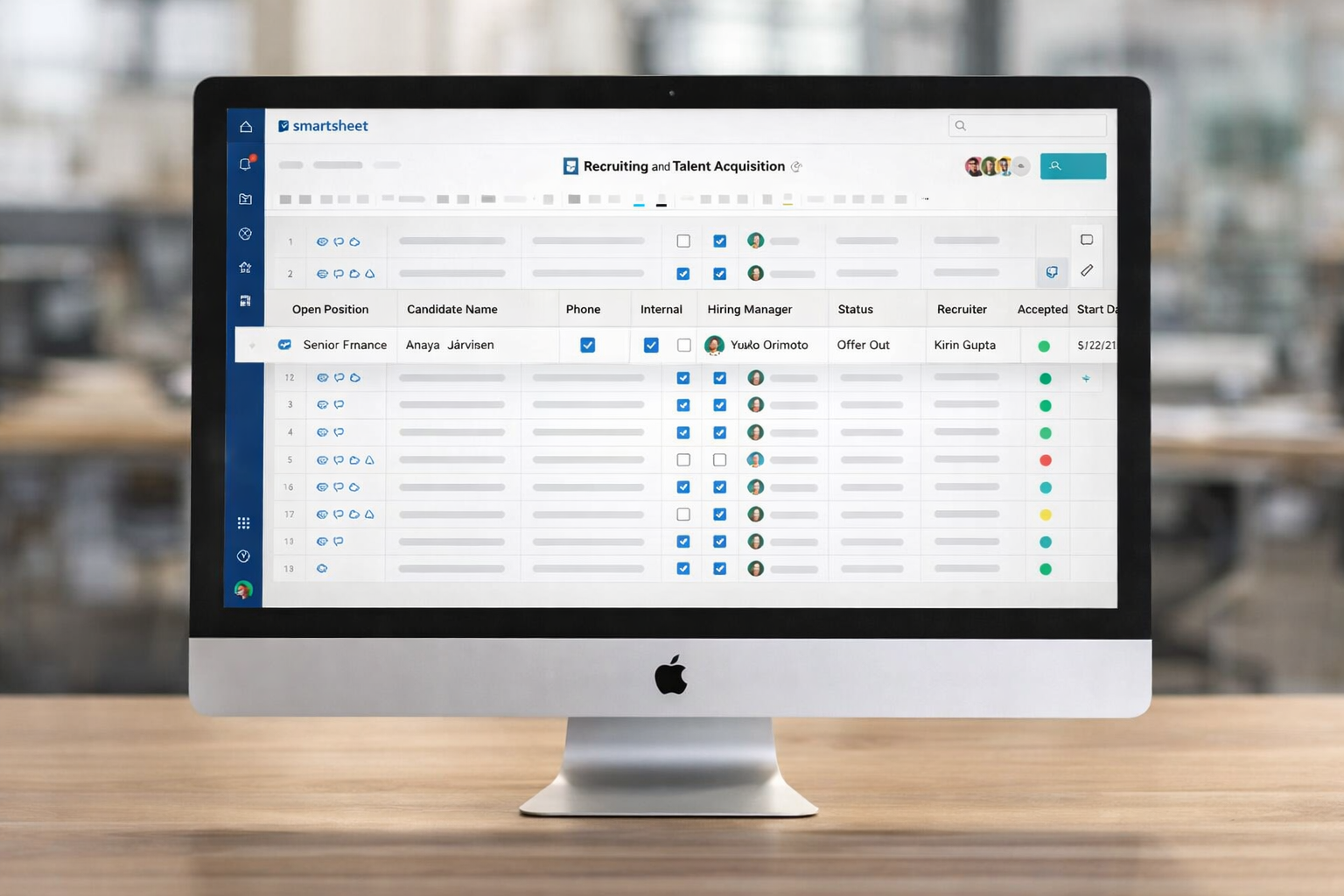
The simplest management system. It includes a“Recruitment & Selection”spreadsheet that features a form allowing candidates to apply for job openings at the company by submitting their resumes, as well as automated alerts so that HR staff know when new candidates have submitted their applications.
When a candidate is hired, certain information from this system’s spreadsheet can be copied to the system’s core spreadsheet, “Employee Master Data.”
Employee Contract Management
Core system of the solution. The core spreadsheet“Employee Master Data”includes a form that allows HR staff to add new employees to the system. In this spreadsheet, the HR manager will have access to information such as: important dates of joining the company, employment status (CLT/PJ/Internship), document details, information on pre-employment exams, etc. The attachments field in the Smartsheet spreadsheet helps manage all of this.
Once a new employee is added by the HR representative, a contract management spreadsheet is automatically generated via the API using the contract management template. The HR representative can then manage the employee’s contracts and enter information such as promotion dates, salary amounts, benefits, etc.
In addition, when an employee leaves the company, the“Employee Master Data”spreadsheet includes a checkbox that triggers an automated process to move the rows for the departed employee to the “Master Data for Departed Employees” database, thereby preventing the accumulation of data for employees who are no longer part of the organization. In short, data management is highly automated and intelligent.
As soon as an employee is hired, they will be asked to enter their personal information via the dynamic view or through a form. The information entered will be stored in the “Employee Birthdays & Personal Information” spreadsheet, which will trigger alerts throughout the company regarding employees celebrating birthdays that month and work anniversary milestones. The “Employee Birthdays & Personal Information” spreadsheet form has a dropdown list for employee names populated by data from the “Employee Registration Data” spreadsheet, ensuring that information from these two spreadsheets is linked using the employee’s name as the key.
If the customer chooses to purchase the system with Dynamic View, the name and email information is automatically transferred from the “Employee Registration Data” spreadsheet to the “Employee Birthdays & Personal Information” spreadsheet, and personal information is entered via the view in Dynamic View. The advantage of using Dynamic View is that the employee who entered the information can later view and edit it.
The calendar view of the “Employee Birthdays & Personal Information” spreadsheet, when configured to display by birthday, allows HR to easily identify employees celebrating their birthdays. Additionally, when an employee leaves the company, this spreadsheet has a checkbox that triggers an automation feature moving the rows for the departed employee to the “Departed Employee Records” database, thereby preventing, for example, birthday alerts for employees who are no longer part of the organization. In short, data management is highly automated and intelligent.
The “Employee Master Data” spreadsheet feeds into the “Employee List” spreadsheet, which is responsible for triggering the PDI and 360-degree feedback systems.
There is a form in the system that uses the TaskIT “auto picklist” product. The product populates the picklist with employee names so that data from the core “Employee Master Data” spreadsheet or the “Employee List” spreadsheet can be linked to the form’s parent spreadsheet. This prevents typos or issues with data association. Failure to use this product requires editing the “Employee Name” and “Employee Email” picklist columns; in this case, an administrator of the “Employee Birthdays & Personal Info” spreadsheet will need to add or remove names and emails from the selection list.
If desired, the TaskIT “automatic groups” solution can be implemented, which consists of adding or removing employees from Smartsheet groups as they are added to or removed from the core “Employee Master Data” spreadsheet; this ensures that all shared workspaces are automatically shared or unshared with them via the group. Dynamic view permissions are also automatically granted or revoked via groups through this solution. Failure to adopt this product requires manual management of Smartsheet groups, including the manual addition and removal of employee email addresses from Smartsheet groups by system administrators.
Contract management spreadsheets are automatically generated via the API using the TaskIT product. If this product is not used, these new spreadsheets must be created manually using the Smartsheet template.
PDI System and 360-Degree Evaluations
Each month, the “Employee List” spreadsheet automatically prompts employees to complete a self-assessment, which can be done via a Smartsheet form or through Dynamic View. The information is uploaded to the “Monthly Self-Assessment” spreadsheet and secured. Only HR has access to this confidential information.
Every two months, the “Employee List” spreadsheet automatically prompts employees to complete the team evaluation, which can be done via the Smartsheet form or through Dynamic View. The information is uploaded to the “Team Evaluation” spreadsheet and secured. Only HR has access to this confidential information.
Every four months, the “Employee List” spreadsheet automatically prompts employees to review their PDI goals with their managers. Goals are entered via a Smartsheet form that populates the “Open Goals – General” spreadsheet; progress can be tracked via the Smartsheet report “My Team’s Goals” or via Dynamic View. When goals are completed, they are moved to completed goals spreadsheets. These completed goals spreadsheets are individual to each employee and are created via API using a Smartsheet template.
Employees who own the goals, their managers, and HR professionals will all have access to the goals. Smartsheet and Dynamic View have data protection settings.
All forms in the system use the TaskIT “auto picklist” feature. This feature populates the picklists with employee names so that data from the core “Employee Master Data” spreadsheet or the “Employee List” spreadsheet can be linked to the form’s parent spreadsheet. This prevents typos or issues with data association. Failure to use this feature requires manual editing of the “Employee Name” picklist column. An administrator of the “Monthly Self-Evaluation” and “Team Evaluation” spreadsheets will need to add or remove names and email addresses from the selection list.
If Dynamic View is not integrated into the solution, employees will be unable to view the evaluations they have completed themselves at a later time.
The creation of spreadsheets for completed goals via the API is handled through the TaskIT product. If this product is not used, these new spreadsheets must be created manually using the Smartsheet template.
Vacation and Day-Off Management
Employees’ vacation balances are calculated based on their employment contract (intern, CLT, or PJ) and the start date of that contract, as entered in the core spreadsheet “Employee Registration Data.”
The “Vacation/Day Off/Sick Leave Record” spreadsheet contains two very important forms: the vacation or day-off request form and the sick leave and medical certificate record form. Both forms include automatic picklist fields. The “employee name,” used as a key in formulas to link management information, start date, and calculate vacation balance, has options populated from the name data in the core “Employee Master Data” spreadsheet.
Smartsheet automations are used to set up workflows for reviewing and approving vacation and days off, as well as alerts regarding sick leave.
Once a request for vacation or days off is submitted, approval is required from HR and the employee’s manager. For this approval, the request dates, the total number of days requested, and the employee’s current balance (prior to approval of this vacation) are provided. If the vacation is approved by HR and the manager, the employee is notified and the days are deducted from their balance. If the vacation is denied by either party, the reason for the denial must be recorded, and the employee receives notification.
The “Vacation/Leave Management” spreadsheet is responsible for displaying this data and calculating vacation balances.
The employee's manager has the authority to grant days off to employees via a form. The information is loaded into a spreadsheet, which not only shows who was granted days off and how many days were granted, but also includes the date and time the days were granted and the login of the person who submitted the request. The “Name” field in the form that records days-off requests is populated by the TaskIT automatic picklist. This field is used as a key in formulas to link management information, start dates, and calculate the balance of days off. The options in the “Name” field are populated from the name data in the core “Employee Master Data” spreadsheet via an auto-picklist through the API.
The system features buttons that provide easy access to forms on the dashboard. In addition, the dashboard displays information in Gantt charts and KPIs regarding employees on vacation.
All forms in the system use the TaskIT “auto picklist” feature. This feature populates the picklists with employee names so that data from the core “Employee Master Data” spreadsheet or the “Employee List” spreadsheet can be linked to the form’s parent spreadsheet. This prevents typos or issues with data association. Failure to use this feature requires an administrator to edit the “Name” and “Employee Name” picklist columns in the “Vacation/Day Off/Medical Leave Record” and “AUX – Add Day Off” spreadsheets. This administrator will need to add or remove names from the selection list.
Management of sick leave and medical certificates
The employee manager information contained in the core spreadsheet “Employee Master Data” is linked to the leave management system.
The “Vacation/Day Off/Sick Leave Record” spreadsheet contains two very important forms: a form for requesting vacation or days off, and a form for recording sick leave and medical certificates.
When a sick leave request is submitted, the employee’s manager is notified of the employee’s name and the date of the leave—nothing more. The HR manager, however, receives the employee’s medical certificate as an attachment, along with any additional information that may have been submitted via the form. Sick leave requests do not require approval.
The system features an easily accessible button on the dashboard that takes you to the form.
There is a form in the system that uses the TaskIT “auto picklist” feature. This feature populates the picklist with employee names so that data from the core “Employee Master Data” spreadsheet or the “Employee List” spreadsheet can be linked to the form’s parent spreadsheet. This prevents typos or issues with data association. Failure to use this feature requires an administrator to edit the “Employee Name” picklist column in the “Vacation/Day Off/Sick Leave Record” spreadsheet. This administrator will need to add or remove names from the selection list.
TaskIT products included in the package



Resumo para decisão
EmployIT: processos de pessoas com Smartsheet e TaskIT
EmployIT é uma solução TaskIT para apoiar processos de pessoas e RH com mais organização, rastreabilidade e visibilidade. Ela faz sentido quando solicitações, aprovações, documentos ou etapas de onboarding precisam sair de controles manuais e ganhar fluxo estruturado.
Critérios de escolha
- Mapear processos de RH com alto volume ou baixa visibilidade.
- Definir responsáveis por etapa, aprovação e comunicação.
- Organizar dados sensíveis com permissões e governança.
- Criar dashboards para acompanhar status e gargalos.
- Treinar usuários para manter informações atualizadas.
Comparativo prático
| Processo | Uso possível | Resultado esperado |
|---|---|---|
| Onboarding | Checklist, documentos e responsáveis. | Menos perda de etapas. |
| Solicitações internas | Formulário e fluxo de aprovação. | Mais rastreabilidade. |
| Gestão de demandas RH | Status, prazos e ownership. | Visão operacional. |
| Indicadores | Reports e dashboards. | Melhor gestão de gargalos. |
Perguntas frequentes
- Para que serve EmployIT?
- Serve para estruturar processos de pessoas e RH com fluxos, dados, aprovações e visibilidade.
- EmployIT substitui sistemas de RH?
- Não necessariamente. Ele pode complementar processos operacionais que precisam de controle e acompanhamento.
- A solução exige Smartsheet?
- Ela foi pensada para operar conectada ao ecossistema Smartsheet e às práticas TaskIT.
Conteúdos relacionados: Produtos TaskIT | Centro de Soluções | Consultoria Smartsheet
Última atualização: maio de 2026.